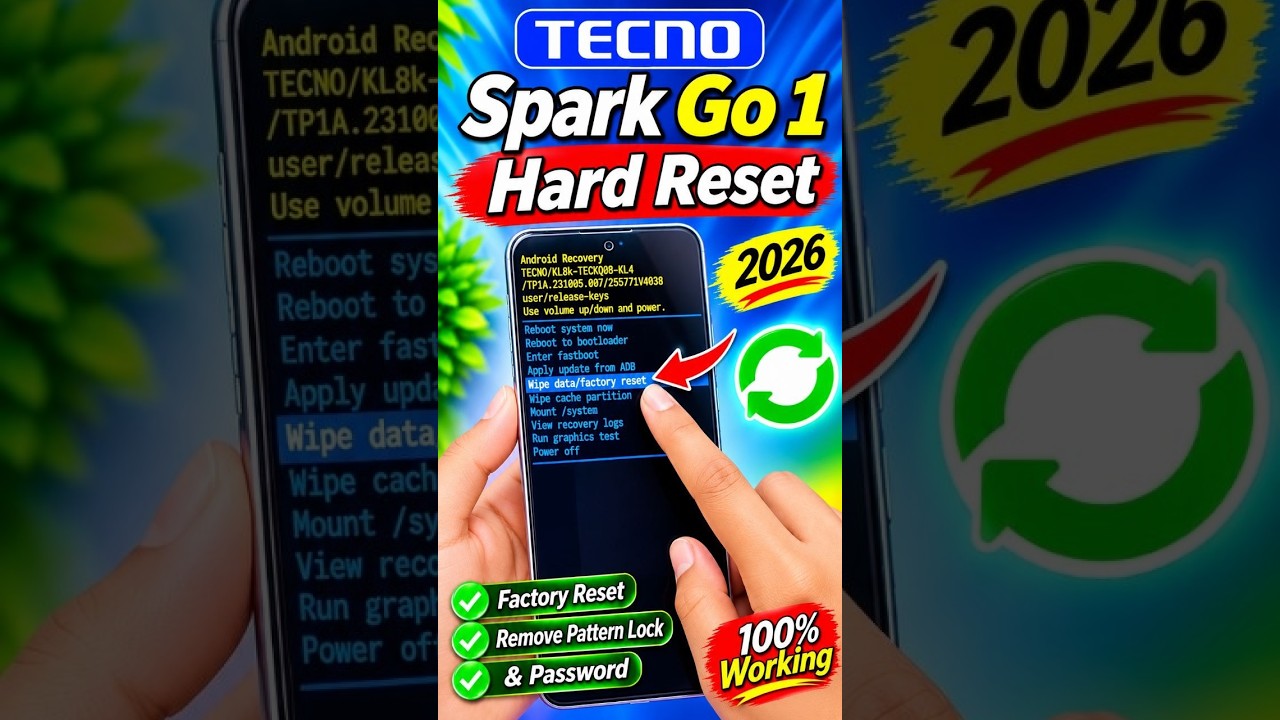
Master Your Device: A Tech Engineering Guide to the Tecno Spark Go 1 Hard Reset
This article provides an in-depth exploration of Tech engineering, covering foundational concepts, practical applications, and engineering insights.
Is your Tecno Spark Go 1 running slowly, freezing, or are you locked out due to a forgotten password? Performing a hard reset is often the most effective way to restore your device to its peak performance. By applying fundamental principles of tech engineering, users can troubleshoot software glitches and system hang-ups without needing to visit a professional repair shop.
In this guide, we will walk you through the precise steps to perform a factory reset using the hardware buttons on your device.
Why Perform a Hard Reset?
Over time, smartphones accumulate cached data and background processes that can degrade the user experience. A hard reset wipes the internal storage and reinstalls the system software, giving your phone a "like-new" feel. From a tech engineering perspective, this process clears the flash memory and resets the logic parameters of the operating system, resolving most software-related conflicts.
Pre-Reset Checklist
Before you begin, please keep the following in mind:
* Backup Your Data: A hard reset erases everything (photos, contacts, apps). Ensure your data is synced to the cloud.
* Battery Level: Ensure your phone has at least 50% battery to prevent the device from shutting off during the process.
* Google Account: Remember your Gmail credentials, as Factory Reset Protection (FRP) will require them after the reboot.
Step-by-Step Hard Reset Instructions
- Power Off: Completely turn off your Tecno Spark Go 1.
- Button Combination: Press and hold the Power Button and the Volume Up button simultaneously.
- Recovery Mode: Once the Tecno logo appears, release the Power button but keep holding Volume Up until the "No Command" android robot appears.
- Enter Menu: Hold the Power button and tap Volume Up once to enter the Recovery Menu.
- Wipe Data: Use the Volume buttons to navigate to "Wipe data/factory reset" and press the Power button to confirm.
- Confirm: Select "Factory data reset" and wait for the process to complete.
- Reboot: Finally, select "Reboot system now."
Conclusion
Mastering these simple maintenance tasks is a great introduction to the world of tech engineering and device repair. If you encounter an FRP lock after the reset, specialized tools and tutorials from experts like Easy Ibrahim Solution can help you navigate those security layers. For more in-depth tips and smartphone troubleshooting, stay tuned for our latest updates and guides.


