Few things are more frustrating than plugging in a flash drive or external peripheral only to see the dreaded notification: "USB Device Not Recognized." Whether you are transferring critical project files or backing up data, a non-responsive USB port can halt your workflow immediately. Fortunately, by applying systematic engineering hardware troubleshooting techniques, you can quickly diagnose and resolve this common technical glitch.
Step 1: Perform Basic Physical Diagnostics
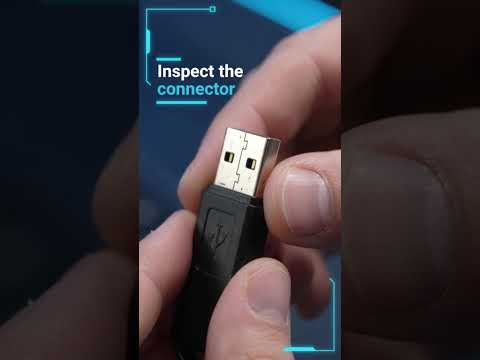
Before diving deep into software configurations, start with the simplest physical tests. Plug your device into a different USB port—preferably one directly attached to the motherboard if you are using a desktop PC. Dust, debris, or a worn physical connector can easily interrupt signal lines.
If the issue persists across multiple ports on your current system, try plugging the USB device into a secondary computer. If it fails there too, the peripheral itself may be damaged; if it works, your original computer's settings or drivers are to blame.
Step 2: Update or Reinstall USB Controllers
Corrupted or outdated device drivers are a primary culprit behind recognition errors. Effective engineering hardware troubleshooting requires inspecting the software interface that manages communication with your physical ports:
- Press
Win + Xon your keyboard and select Device Manager. - Expand the Universal Serial Bus controllers section.
- Right-click your USB driver or host controller and select Update driver.
- If updating fails, select Uninstall device, then restart your computer. Windows will automatically reinstall a fresh, clean copy of the driver upon rebooting.
Step 3: Disable the USB Selective Suspend Feature
Windows power management features sometimes aggressively power down USB ports to conserve energy, causing connectivity drops or total recognition failure.
To fix this, open the Control Panel, navigate to Power Options, and click Change plan settings next to your active plan. Click Change advanced power settings, locate USB settings, and set USB selective suspend setting to Disabled. This ensures your ports receive a steady, continuous power supply.
Conclusion
Encountering an unrecognized peripheral does not necessarily mean your device is broken beyond repair. By sticking to a structured engineering hardware troubleshooting process, you can easily isolate whether the problem stems from power management, corrupted software drivers, or hardware damage, getting your workflow back on track in minutes.


