How to Fix Missing Catalog Numbers and Optimize Your CAD Data in AutoCAD Electrical
This article provides an in-depth exploration of CAD data, covering foundational concepts, practical applications, and engineering insights.
Are you facing the frustrating "Missing Catalog Number" issue while designing schematics in AutoCAD Electrical? You are not alone. This common error can stall project workflows, generate inaccurate Bill of Materials (BOM) reports, and disrupt the overall structure of your electrical schematics. Maintaining accurate CAD data is vital for streamlined engineering design, and resolving these missing references is easier than you think.
In this quick guide, we will walk you through why catalog errors happen and how you can resolve them efficiently to keep your project moving forward.
Why Do Missing Catalog Number Errors Occur?
AutoCAD Electrical relies on a centralized database (default_cat.mdb) to map schematic symbols to real-world manufacturer components. When a symbol does not have an assigned catalog number, or if the system cannot locate the corresponding entry, the program flags it as missing.
Common causes include:
* Using custom schematic symbols without assigning component attributes.
* Missing or outdated manufacturer catalog databases installed on your local drive.
* Incorrect search paths in the project configuration settings.
Step-by-Step: How to Fix Missing Catalog Numbers
Fixing this issue involves re-linking your component attributes to your database to ensure your CAD data remains consistent and precise across all project drawings.
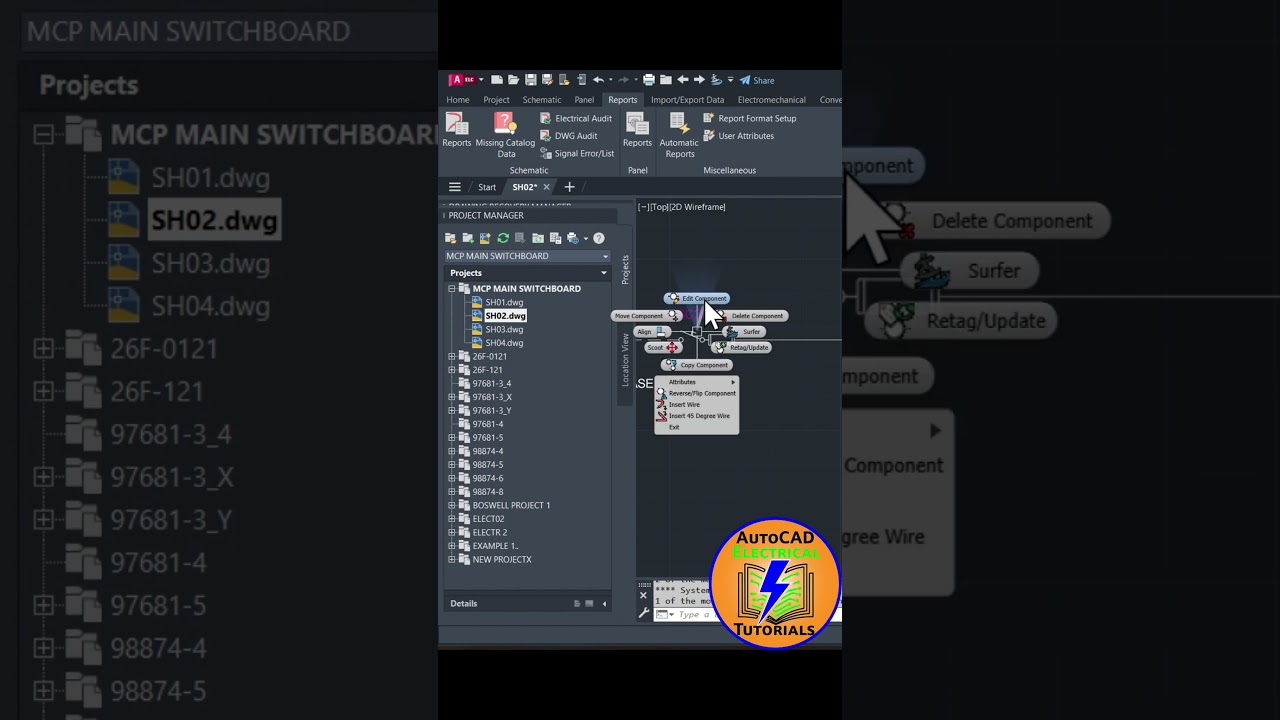
- Locate the Affected Component: Right-click on the symbol displaying the missing catalog error and select Edit Component.
- Access the Catalog Lookup: Inside the Insert/Edit Component dialog box, click on the Lookup button under the Catalog Data section.
- Search the Database: Filter by manufacturer or keyword to find the desired part number. If the part is missing from the default database, click Edit to manually add the part number, description, and footprint specs.
- Apply Changes: Select the correct catalog item and click OK. The schematic symbol will now automatically update with the complete manufacturer details.
Best Practices for Seamless Database Management
To prevent missing catalog issues from recurring, project teams should establish reliable database management workflows. Always ensure your custom CAD data is properly indexed and backed up in a shared network drive if you work in a team environment. Additionally, routinely updating your manufacturer content libraries through the Autodesk installer ensures you have access to the latest electrical components.
By maintaining clean database links and understanding how to quickly edit catalog lookups, you can eliminate missing catalog errors, create accurate BOMs, and maintain a seamless workflow in AutoCAD Electrical.
Visual Insights & Illustrations


