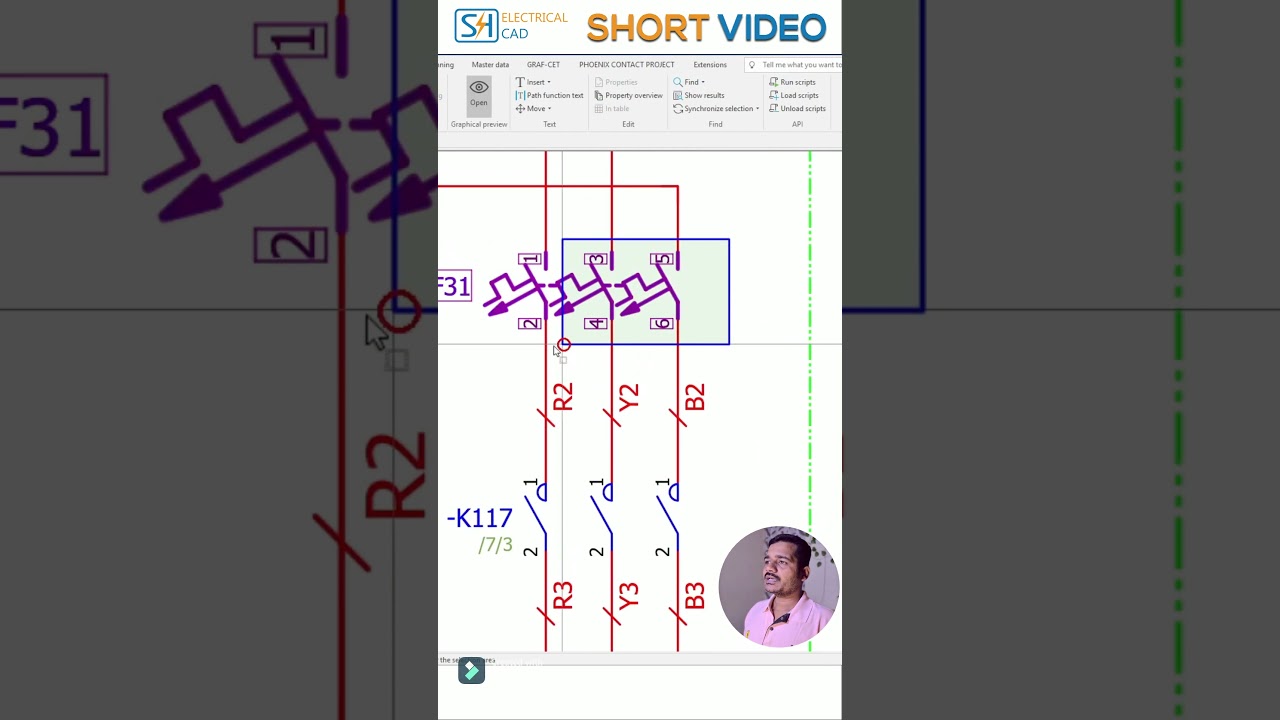
EPLAN Tips: How to Change Connection Point Designation Rotation in Engineering Software
This article provides an in-depth exploration of Engineering software, covering foundational concepts, practical applications, and engineering insights.
When designing complex electrical schematics, clarity and readability are paramount. EPLAN Electric P8 stands out as an industry-leading engineering software designed to streamline electrical automation and control system workflows. However, small visual details—like the orientation of connection point designations—can sometimes clutter your drawings if they are not aligned properly.
In this EPLAN tips and tricks guide, we will walk you through how to change the rotation of connection point designations in your project settings for cleaner, more professional schematics.
Why Adjust Connection Point Designation Rotation?
Connection point designations identify terminal points, pin connections, and wire routes within your electrical diagrams. When components are densely packed or placed vertically, standard horizontal text can overlap with wires or adjacent symbols. By adjusting the text rotation angle, you can:
- Enhance Readability: Ensure installation and maintenance technicians can easily read terminal labels on the factory floor.
- Maintain Standardization: Keep text alignment consistent across all pages of your electrical documentation.
- Optimize Drawing Space: Fit essential metadata into tight schematic layouts without sacrificing clarity.
Step-by-Step: Changing Designation Rotation in Settings
Configuring default rotation settings in your engineering software environment is quick and straightforward. Follow these steps to adjust your setup:
- Access Options: Open your EPLAN project, navigate to the top menu, and click on Options > Settings.
- Navigate to Graphical Editing: Expand the Projects section, select your active project, and navigate to Management > Graphical Editing.
- Modify Display Properties: Locate the connection point display settings. Here, you will find options for default text alignment and angle placement.
- Set Your Preferred Angle: Choose the desired rotation angle (such as 90° or 270°) that best matches your project layout standards.
- Save and Apply: Click Apply and OK to update your project settings. Your schematics will instantly reflect the updated text orientation.
Streamline Your Electrical Design Process
Mastering property settings in modern engineering software dramatically reduces manual adjustments during the drafting phase. By setting up correct text rotation defaults in EPLAN, you ensure that every exported project remains clean, professional, and easy to navigate for engineering teams and field technicians alike.
Visual Insights & Illustrations


