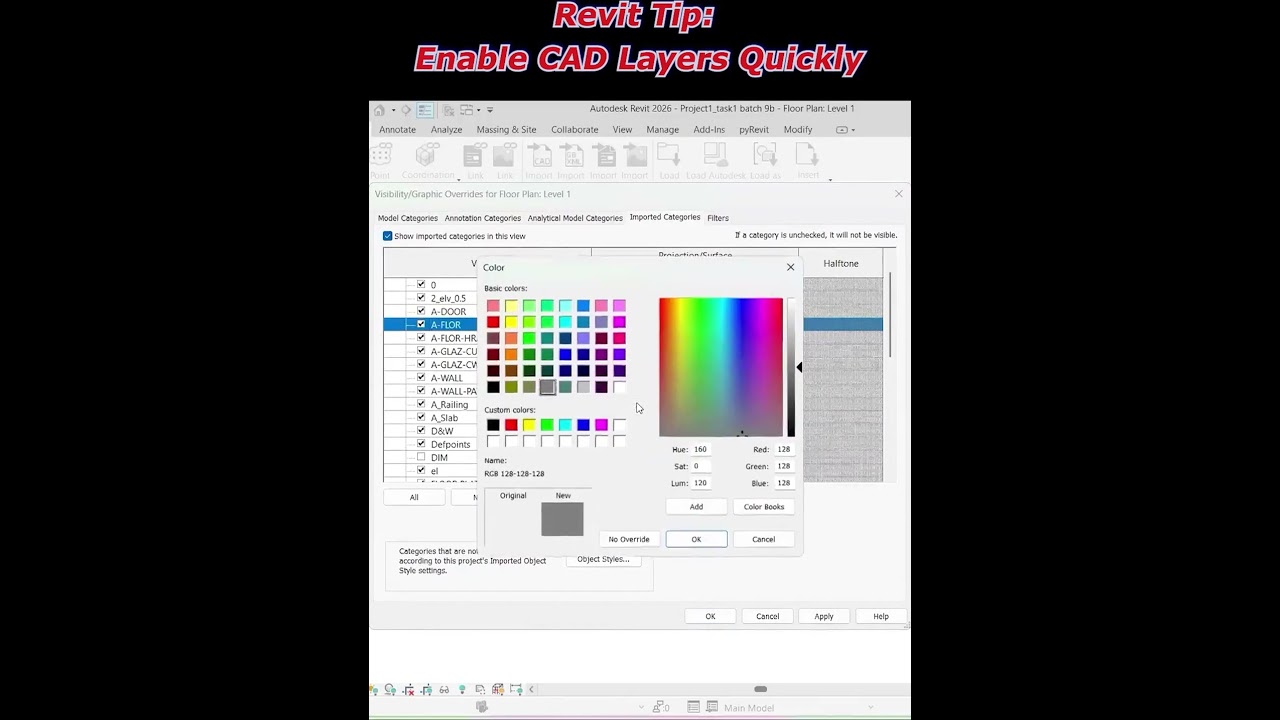
How to Quickly Enable and Manage CAD Data Layers in Revit
This article provides an in-depth exploration of CAD data, covering foundational concepts, practical applications, and engineering insights.
When working on Building Information Modeling (BIM) projects in Autodesk Revit, linking or importing external DWG files is a standard practice. However, toggling layer visibility manually can quickly turn into a frustrating bottleneck. If you want to streamline your workflow and turn on CAD layers without wasting precious design time, mastering Revit’s visibility overrides is essential.
Why Managing Imported CAD Data Matters
External drawings often come packed with dozens of layers—many of which are unnecessary for your current Revit view. When you bring this CAD data into your BIM environment, unorganized layers can clutter your workspace, slow down model performance, and lead to visual confusion. Knowing how to efficiently isolate and enable specific layers allows you to keep your views clean and focused strictly on the elements you need.
The Fast Track to Enabling CAD Layers in Revit
Instead of digging through complex project settings every time you need to view hidden elements, follow this lightning-fast approach to manage your imported graphics:
- Open Visibility/Graphics Overrides: Press the shortcut VG or VV on your keyboard to open the Visibility/Graphics dialog box for your active view.
- Navigate to Imported Categories: Click on the Imported Categories tab at the top of the window. This is where all linked or imported files reside.
- Expand the File: Locate your drawing file and click the small dropdown arrow next to its name to reveal all embedded layers.
- Toggle Layer Visibility: Check the boxes for the layers you want to turn ON (or uncheck those you want to hide).
- Apply and Close: Click Apply and then OK. Your view will instantly update to display the newly enabled layers.
Pro Tip: You can also use the Query Tool directly in the Revit drawing window. Simply select the imported drawing, click "Query" on the contextual ribbon, select the line or object you want to adjust, and choose to hide or delete the specific layer right on the spot.
Optimize Your BIM Workflow
Working seamlessly with external CAD data doesn't have to slow down your drafting speed. By leveraging keyboard shortcuts and the Query tool, you can maintain full control over imported drawings while keeping your Revit model clean and responsive. Incorporate this quick visibility tip into your daily routine to boost your BIM productivity today!
